ATS-Friendly CV: What Applicant Tracking Systems Actually Look For
3/15/2026
Learn how ATS works, which formats and structures pass parsing, and how to use clean layout and keywords so your CV reaches recruiters.
What Applicant Tracking Systems Actually Look For
Your CV often has to pass a robot before it reaches a human. Applicant tracking systems (ATS) screen resumes by parsing text, matching keywords, and checking structure. If your CV is built for looks instead of parsing, you can be filtered out before a recruiter ever sees it. This guide explains how ATS works, what they actually look for, and how to build an ATS-friendly CV that still reads well to people.
You will also see how CV Creator helps: with ATS-safe templates and AI that suggests keywords and structure from the job description so you can tailor your resume without guessing.
How Applicant Tracking Systems Work
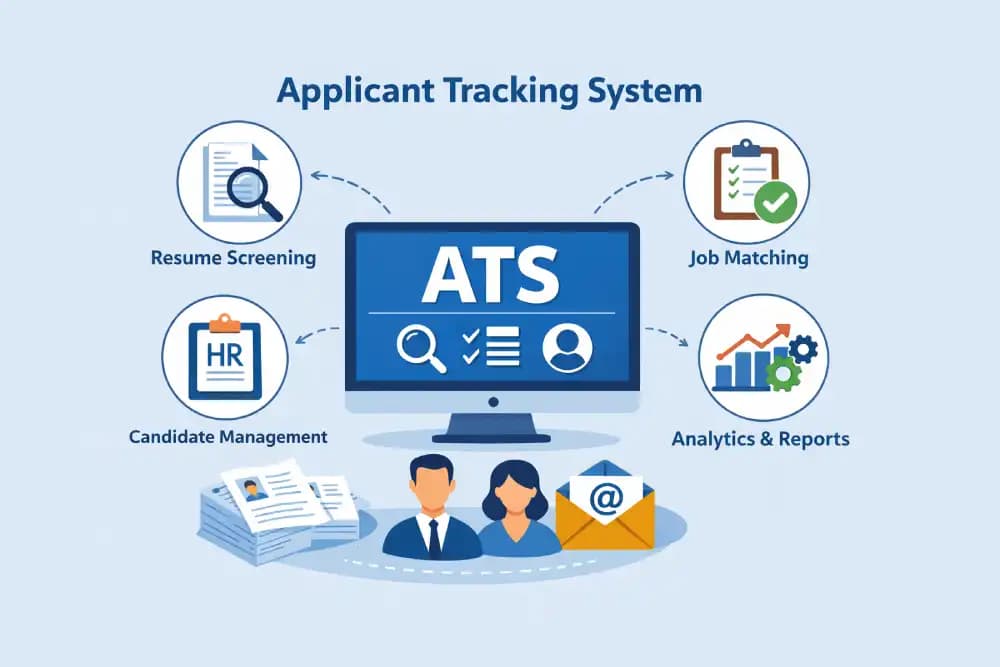
Most medium and large companies use ATS software to manage job applications. The system does three main things:
- Parse your document – It reads your CV (PDF or Word) and turns it into structured data: name, contact info, sections, dates, bullet points.
- Extract and match – It looks for skills, job titles, education, and keywords that match the job description.
- Rank or filter – Candidates are scored or filtered by match; low scores often never reach a human.
If parsing fails—because of columns, graphics, or unusual formatting—whole sections can be missed or jumbled. If keywords are missing, your match score drops. So an ATS-friendly CV is one that parses cleanly and contains the right keywords in a clear structure.
What ATS Actually Look For: Structure and Headings
ATS are built to recognise standard resume sections and headings. The more your CV looks like a clear, linear document with familiar labels, the better it parses.
Use clear, standard section headings
Use headings that systems expect, in plain text (not images or fancy graphics):
- Work Experience / Professional Experience / Employment
- Education
- Skills
- Summary / Profile / Professional Summary
Avoid creative or vague headings like “Where I’ve been” or “What I bring”. Stick to terms recruiters and ATS both understand.
Prefer a single-column, top-to-bottom layout
- Single column is safest. Text flows in one order; the ATS reads it in the same order as a human.
- Multi-column layouts (e.g. sidebar + main content) often get read in the wrong order or with chunks missing. Many ATS read left-to-right, then next row, so “column 1 then column 2” can become a mess.
- Tables can break parsing. If you use them for dates or skills, some systems may misread or skip content.
Avoid elements that break parsing
- Images, charts, and logos – ATS typically ignore them. Putting important text inside an image (e.g. your name or contact in a header graphic) means the system may not see it.
- Text boxes and shapes – Content inside text boxes is often not extracted correctly.
- Headers and footers – Some ATS skip or misplace header/footer text. Keep your name and contact in the main body or a simple top block.
- Unusual fonts or heavy styling – Fancy fonts are less of a problem than layout; still, very decorative or symbol-heavy fonts can cause misreads. Standard fonts (e.g. Arial, Calibri, Georgia) are reliable.
In CV Creator, templates are designed with clean structure and standard sections. You get a professional look without columns or graphics that break parsing, so your CV is built to be ATS-safe from the start.
Keywords: What “ATS-Friendly” Really Means for Content
Structure gets you parsed; keywords get you matched. ATS (and recruiters) compare your CV to the job description. Missing terms = lower score.
Where keywords matter most
- Job title and role – Use the same or very similar job title and role type (e.g. “Frontend Developer”, “Marketing Manager”).
- Skills and tools – Include exact tools and technologies from the ad (e.g. “React”, “SQL”, “Figma”, “Google Analytics”). Spell them as in the job description when possible.
- Experience and seniority – Words like “led”, “owned”, “managed”, “implemented”, “mentored” help signal level.
- Industry and context – Terms like “B2B”, “SaaS”, “e-commerce”, “healthcare” can matter for scoring.
How to add keywords without stuffing
- Summary – One or two sentences that mirror the role and 2–3 key skills from the job ad.
- Bullet points – Weave in tools and outcomes; e.g. “Built dashboards in Tableau for B2B clients” instead of “Made reports for clients.”
- Skills section – List the main requirements from the job description that you actually have; keep the list relevant, not endless.
You do not need to repeat the same phrase 10 times. Natural use in context is enough.
CV Creator ties directly into this. When you add a job application, you paste the job description. The AI analyzes it and suggests keywords and structure for your resume—section by section—so you can tailor your CV to that specific role without manually hunting for terms. You get suggestions for summary, experience, and skills that align with what the ATS is looking for.
A Practical Checklist for an ATS-Friendly CV
Use this before you submit:
- Headings – Use standard section names (Work Experience, Education, Skills, Summary). No images as headings.
- Layout – Single column, top to bottom. No side-by-side columns for main content.
- Contact – Name, email, phone (and optionally LinkedIn) in plain text at the top, not only in a header graphic.
- File format – PDF is widely supported; if the employer asks for Word, use .docx. Avoid images of your CV (e.g. a screenshot).
- Keywords – Skim the job description and include relevant skills, tools, and role titles in your summary and bullets.
- Spelling – Match important terms to the job ad (e.g. “JavaScript” vs “Javascript”) where it makes sense.
- No critical text in images – Do not put name, contact, or key skills inside images, logos, or charts.
If you use CV Creator, you can start from an ATS-safe template and then run the job-specific AI optimization: paste the job description, apply the suggested keywords and structure, and export a clean PDF—all in one flow.
How CV Creator Fits In: ATS-Safe Templates and AI That Uses the Job Description
Two things matter for passing ATS: format and content.
- ATS-safe templates – CV Creator’s templates use clear headings and a single-column, linear structure. They are built to look good and to parse reliably, so you avoid the columns and graphics that often break ATS.
- AI that suggests keywords and structure – When you create a job application in CV Creator, you enter the job description. The AI analyzes it and suggests improvements to your resume: better keywords, clearer structure, and section-by-section tweaks so your CV matches what the ATS is matching on. You can apply suggestions per section or in one go, then export a tailored PDF.
So you get both: a document that ATS can read, and content that matches the job. If you want to pass ATS without the guesswork, you can try this workflow in CV Creator in a few minutes.
Summary
Applicant tracking systems parse your CV and match it to the job. To pass ATS:
- Use standard section headings and a single-column layout; avoid columns, text boxes, and graphics for important text.
- Include relevant keywords from the job description in your summary, bullets, and skills—naturally, not stuffed.
- Prefer plain text for name and contact; export a clean PDF (or .docx if requested).
An ATS-friendly CV is not about tricks—it is about clean structure and relevant keywords. With CV Creator, you can start from an ATS-safe template and use AI to tailor keywords and structure from the job description, so your resume is built to be seen by both the system and the recruiter.